 Fasti
Fasti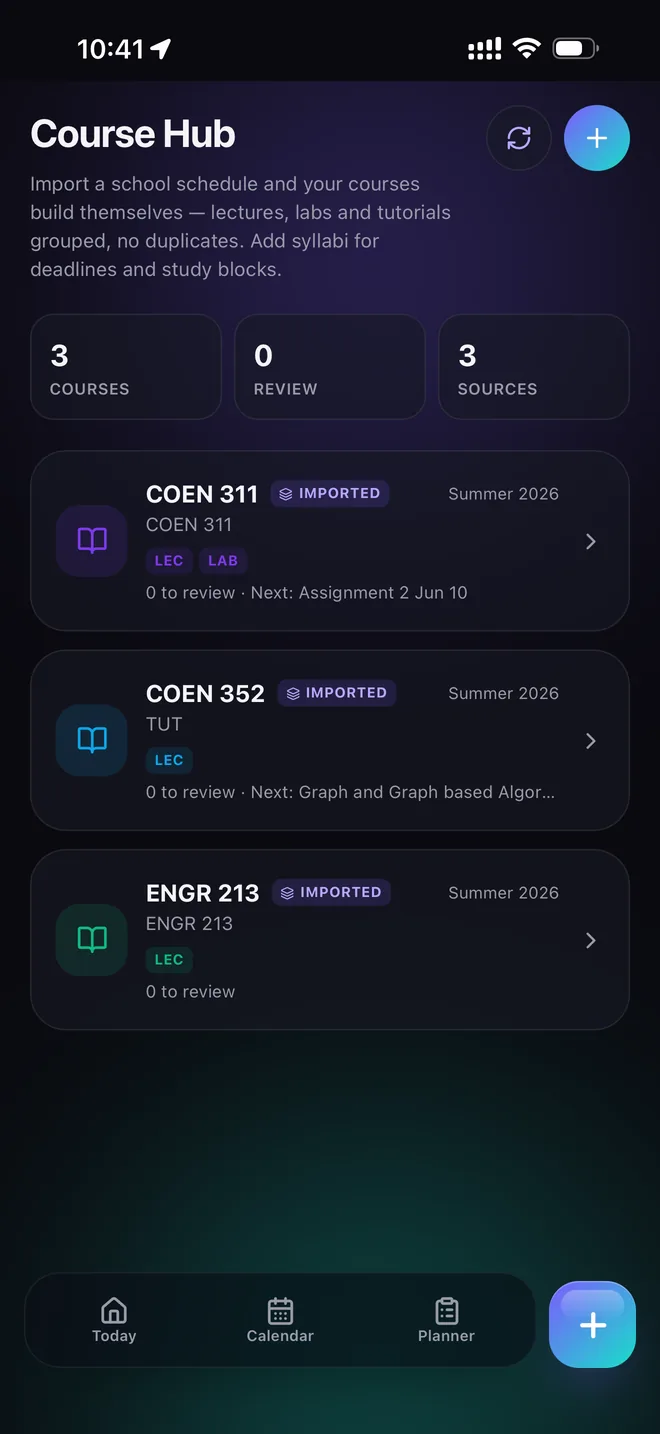
What the import step reads
You can start from a screenshot, photo, PDF or pasted text — a class timetable, a syllabus, a work shift roster, or a schedule exported from a school portal. Fasti reads the source and identifies course or shift names, days, start and end times, rooms or locations, and any recurrence pattern it can detect, such as a weekly lecture or an alternating lab.
Why nothing saves until you say so
An automated read of a messy, real-world schedule will sometimes misread a room number, a time, or which week a lab actually meets. Instead of trusting that read silently, Fasti shows every proposed event as a preview first. You see exactly what it understood — title, day, time, location, recurrence — and can correct any of it before a single event is added to your calendar.
This review step is the actual accuracy mechanism. It's less about getting every read perfect on the first pass, and more about making sure a misread never becomes a wrong event you have to discover later.
What it's built to handle
- Alternating A/B week patterns, not just a simple weekly repeat.
- Labs and tutorials that meet on a different cadence than the main lecture.
- Date-limited terms, so a class doesn't keep recurring after the semester ends.
- Multiple courses or shifts in a single image, grouped correctly instead of merged.
- Follow-up corrections — you can tell it what changed and it updates the proposal, rather than starting over.
For the full walkthrough of a real import, see how to import a class schedule and how it handles rotating and complex timetables.
What happens to your file afterward
An uploaded image, photo or PDF is used to extract the schedule information and is not kept as a permanent file. The full data-handling details, including what's stored for account and cloud-sync features, are in the Privacy Policy.
What to check before you confirm
- Course or shift names — especially when a source uses abbreviations or codes.
- Days and times — including whether a start or end time reflects a break in a longer block.
- Room or location — useful later for commute and conflict checks.
- Recurrence — confirm alternating weeks and term end dates are correct, not just the first occurrence.
Common questions
Does Fasti save my imported schedule automatically?
No. Every extracted event is shown as a proposed change first. Nothing is added to your calendar until you review and confirm it, so you can fix a misread room, time or course name before it becomes a real event.
What happens to the photo or PDF I upload?
It is processed to extract the schedule information and then discarded — it is not kept as a permanent file. See the Privacy Policy for the complete data-handling details.
What kinds of schedules can Fasti read?
Screenshots, photos and PDFs of timetables, syllabi and shift rosters, plus pasted text. It handles weekly recurrence, alternating A/B weeks, labs and tutorials that don't repeat every week, and date-limited terms.
What should I check before confirming an import?
Course names, days, start and end times, room or location, and the recurrence pattern — especially for alternating weeks or a course that meets in more than one format, like a lecture plus a separate lab.